Sidebar block
The opt-in color block in the Explorer: full or muted, shown until you hide it.
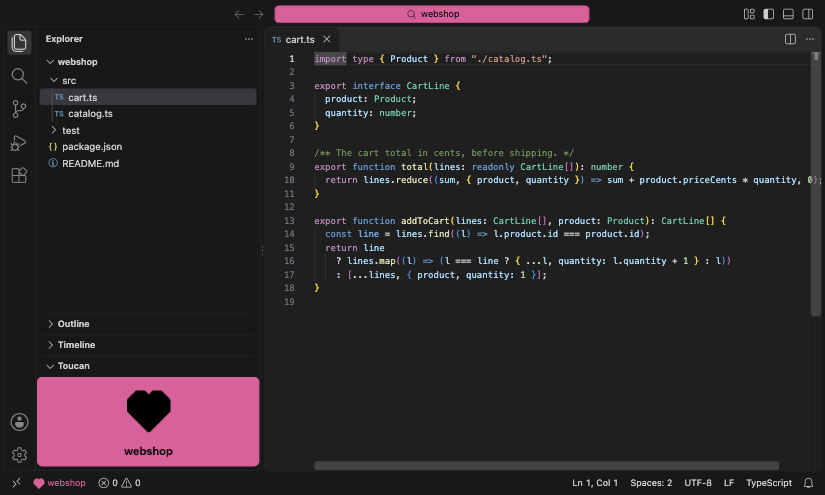
An opt-in block in the Explorer shows the repository's glyph large, with its name underneath, in the repository color. Turn it on with toucan.sidebarBlock.enabled or Toucan: Toggle Sidebar Block.
VS Code places the block among the Explorer's sections, below the folder tree by default. Drag it where you like (to the top, say) and VS Code remembers the place.
Style
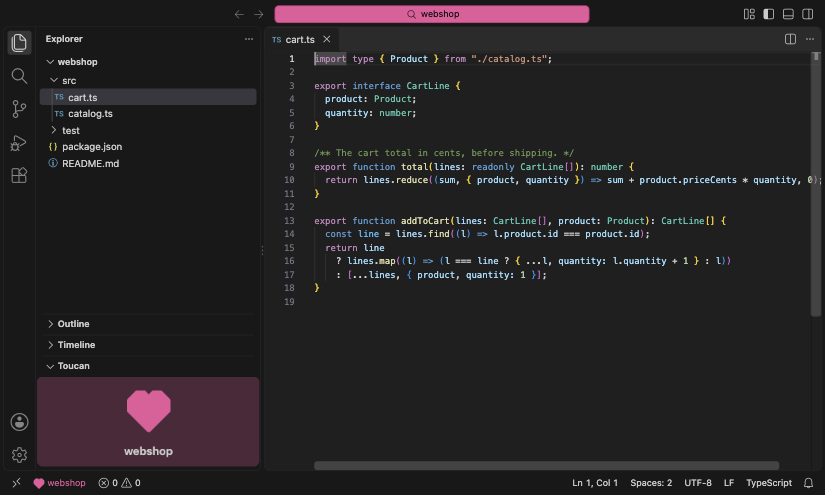
toucan.sidebarBlock.style sets how strongly it's colored: full (default) is the solid repository color; muted is a faint tint with the glyph in full color and the name in the theme's text color.
Showing and hiding
VS Code adds the block to the Explorer collapsed, so in a workspace where it was already on it first shows as a "Toucan" header at the bottom; open it once and VS Code remembers. When you turn the setting on while the window runs, Toucan expands it for you once (switching the sidebar to the Explorer if it showed another view), in the window you are working in only (also when the change arrives through Settings Sync). Otherwise Toucan never switches the sidebar's view, and never expands a block you collapsed.
Collapsing the block, showing another view such as Search, or hiding the sidebar don't hide it for good. Hide from the block's … menu does, and so does Toucan: Toggle Sidebar Block while the block is showing. A hidden block stays hidden in this workspace until you run Toggle Sidebar Block again, which also expands a block that is merely collapsed.
The old unfocused mode is gone. toucan.sidebarBlock.visibility and a repository's sidebarBlock field are deprecated and ignored.