Colors
How Toucan colors the Command Center and the status bar, and how to set and clear a color.
VS Code has no per-window color API, so Toucan layers a few signals. Repositories without a Toucan color get none of them.
Command Center

The Command Center (the search bar in the title bar) takes the focused window's repository color. Toucan writes it to your user-level workbench.colorCustomizations when a window gains focus, and that setting is shared by every window: the other windows' Command Centers show the same background, with their text and border dimmed while they're unfocused. Each window's own color stays on its status bar, and on its sidebar block or search emoji if those are on.
Switching to another window with a Toucan color replaces it at once; a window whose repository has no color clears it, and so does leaving VS Code, after a short delay. The other Command Center colors (text, hover, border, the unfocused look) are derived from the background so they stay readable; toucan.repos can override any of them.
Status bar

Every window shows the repository's glyph and name on the left of the status bar, in the repository color. It needs no settings write, so it works in windows that aren't focused. Click it to set a color, or hover it for a swatch, the color and links to Set Color, Preset, Glyph and Clear.
Set Color
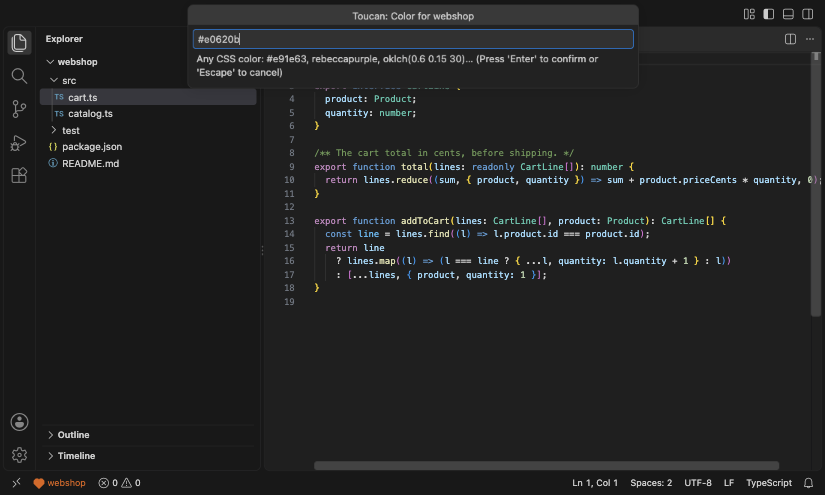
Toucan: Set Color for This Repo takes any CSS color: #e91e63, rebeccapurple, oklch(0.6 0.15 30). The status bar previews it as you type; nothing is saved until you press Enter, and Escape leaves the saved color as it was. The color must be opaque. It warns when a color may be hard to see on the status bar, without stopping you from saving it.
Clear Color
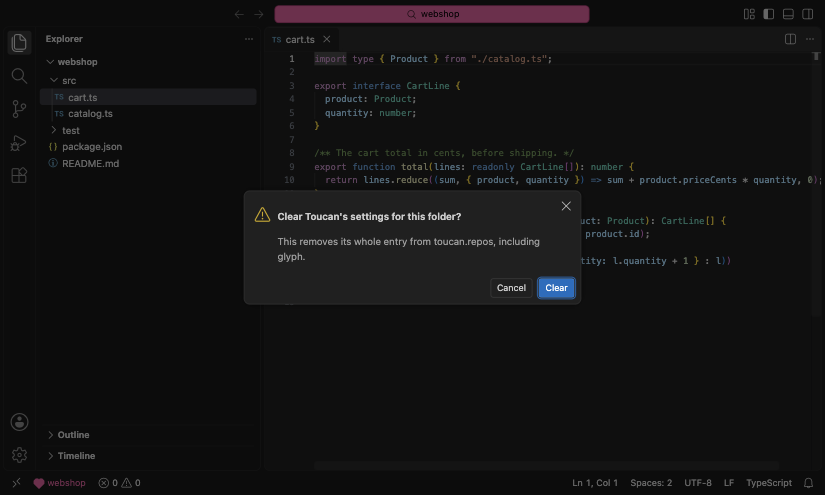
Toucan: Clear Color removes the repository's entry from toucan.repos. If the entry holds more than a color (overrides, a glyph, a sidebar setting), it asks first and lists them. When the last entry goes, the toucan.repos setting goes with it, and so does Toucan's part of workbench.colorCustomizations.
Good to know
- Toucan owns every top-level
commandCenter.*key in your user-levelworkbench.colorCustomizationsand never touches other keys. Theme-scoped blocks such as"[Default Dark Modern]"are yours, and VS Code applies them on top of Toucan's colors while that theme is active. - With Settings Sync, the focus colors can reach other machines. Add
"settingsSync.ignoredSettings": ["workbench.colorCustomizations"]to keep them local. - Toucan edits its settings in place, so comments in your settings file survive.