Getting started
Install Toucan and give your first repository a color.
Toucan shows at a glance which repository a VS Code window has open. Colors are configured once, by repository name, in your own user settings, and Toucan never writes anything into the opened repository.
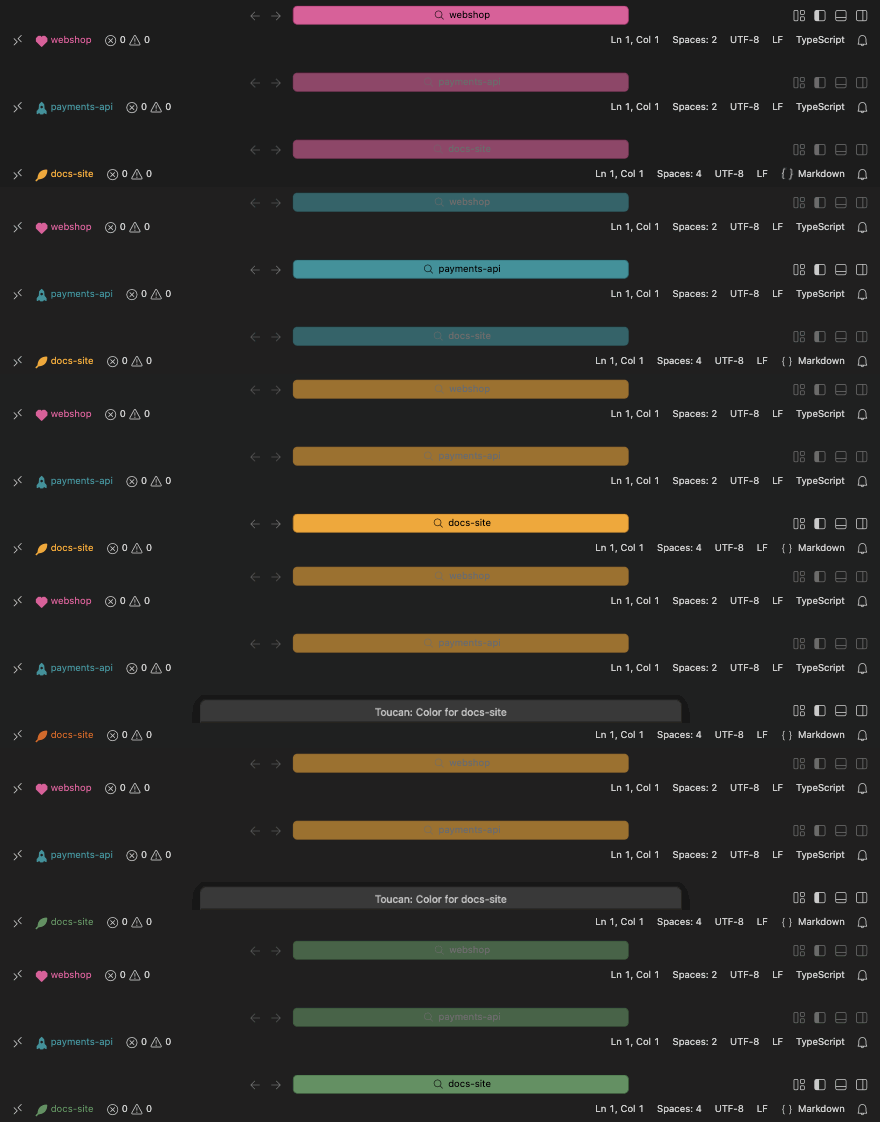
- The Command Center takes the focused window's repository color.
- Every window, focused or not, shows a glyph and the repository name in that color on the status bar.
- Opt-in extras: a sidebar block, and an experimental search emoji.
- One setting for every repository you open, set through commands with a live preview, or by hand.
Install
Install Toucan from the Visual Studio Marketplace: in VS Code, open the Extensions view and search for Toucan, or run code --install-extension marco-daniel.toucan.
Toucan is made for VS Code and isn't on Open VSX. Cursor, VSCodium and other editors built on VS Code can install the .vsix from the latest GitHub release, if their VS Code version is recent enough; support for them is best effort. Download it, then either:
- in VS Code: Extensions view →
…→ Install from VSIX…, or - from a terminal:
code --install-extension toucan-<version>.vsix
Your first color
- Open a repository in VS Code.
- Run Toucan: Set Color for This Repo from the Command Palette, or Toucan: Pick Preset Color for one of the presets.
- Watch the status bar preview the color as you type or move through the list, then press Enter to save it.
The Command Center and the status bar take the color at once. Every window that opens this repository gets it too.